CSS – Block & inline & inline-Block
Block :
Certainly! In CSS, “blocks” refer to the fundamental building blocks of a webpage’s layout. These are structural elements that help organize and present content effectively. Imagine them as the containers or boxes that hold your content.
Block-level elements typically start on a new line and span the full width of their parent container, effectively creating a “block” of content. Common examples of block-level elements include headings (like <h1>, <h2>, etc.), paragraphs (<p>), lists (<ul> and <ol>), and divs (<div>).
When you apply CSS styles to block-level elements, you can control their dimensions (width and height), margins, padding, background colors, borders, and more. This makes it possible to create visually appealing and well-structured web pages.
For instance, you can set a specific width and height for a block element, adjust its margins to create spacing between elements, or even use CSS properties to position blocks in a desired layout. All of these CSS properties help in creating the overall design and layout of a webpage.
In contrast to block-level elements, there are also “inline” elements like or that do not create a new block but rather flow within the content, often next to other inline elements. Understanding how to use and style both block-level and inline elements is essential for creating well-structured and visually pleasing web layouts.
Example :
<!DOCTYPE html>
<html>
<head>
<style>
.my-block {
background-color: #f0f0f0;
border: 1px solid #ddd;
padding: 20px;
margin: 10px;
}
</style>
</head>
<body>
<div class="my-block">
<p>This is a block of text.</p>
</div>
</body>
</html>
Code language: HTML, XML (xml)Output :

In this example, the <div> element with the class “my-block” acts as a block-level container. It has a defined background color, border, padding, and margin, which collectively define its appearance as a block on the webpage.
inline :
Certainly! In CSS, “inline” refers to a type of element behavior that is different from block-level elements. Inline elements are those that do not start on a new line and only occupy as much width as necessary to display their content. Instead of creating a new “block” on the page, inline elements flow within the surrounding text or content.
Imagine inline elements as seamlessly integrated within the text, like words or phrases that don’t disrupt the natural flow. Common examples of inline elements include linkslinks (<a>), emphasis elements (<em> or <strong>), and spans (<span>).
One key characteristic of inline elements is that you can’t control their width or height using CSS directly. They automatically adjust to fit their content. However, you can apply various CSS properties to inline elements to style them, such as changing their text color, background color, font size, or adding margins and padding.
Inline elements are often used for text-level styling or for embedding links and small elements within a paragraph or sentence. They allow you to enhance the visual presentation of your content without disrupting the normal flow of text.
Understanding the difference between block-level and inline elements is essential in CSS, as it helps you structure and style your web content effectively, whether you’re creating paragraphs of text or adding interactive links and emphasis to your content.
In CSS, the display property is used to specify how an HTML element should be displayed. To make an element display inline, you can set its display property to inline. Here’s an example in HTML that demonstrates the use of display: inline:
<!DOCTYPE html>
<html>
<head>
    <style>
        /* CSS style to make an element display inline */
        .inline-element {
            display: inline;
            background-color: #336699;
            padding: 5px 10px;
            color: white;
        }
    </style>
</head>
<body>
    <h2>Inline Display Example</h2>
    <p>
        This is a <span class="inline-element">highlighted</span> inline element within a paragraph.
    </p>
    <p>
        Another <span class="inline-element">inline</span> example.
    </p>
</body>
</html>Code language: HTML, XML (xml)
Output :
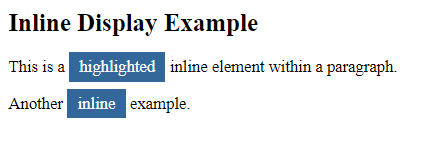
In this example:
- We have a
<span>element with the class.inline-elementinside two paragraphs (<p>elements). - In the CSS, we use the
.inline-elementclass to set thedisplayproperty toinline, which makes the<span>element behave like inline text within the paragraphs. - We also apply background color, padding, and text color styles to the inline element to highlight it.
When you open this HTML file in a web browser, you will see the text within the <span> elements displayed inline within the paragraphs. The display: inline property allows you to make elements flow within the text content, and you can style them accordingly.
inline-block :
Certainly! Inline blocks are a useful concept in CSS that allows elements to behave like inline elements while still maintaining block-level properties. Let’s delve into this topic in a more human-friendly way.
Imagine you’re working on a webpage, and you want to display a list of items horizontally, like a menu or a set of buttons. At the same time, you want each item to have its own block-like behavior, where you can apply margins, padding, and set their dimensions individually. This is where inline blocks come into play.
Inline blocks let you achieve this by combining the best of both worlds. They behave like inline elements, which means they flow horizontally in the text content, just like words in a sentence. However, they also retain block-level properties, so you can control their size, spacing, and other styling aspects as if they were block elements.
To create an inline block, you typically set the CSS display property to “inline-block” for the desired HTML elements. This tells the browser to treat them as inline blocks. Here’s an example:
<!DOCTYPE html>
<html>
<head>
<style>
  .menu-item {
    display: inline-block;
    margin: 5px;
    padding: 10px;
    background-color: #3498db;
    color: white;
  }
</style>
</head>
<body>
  <div class="menu-item">Home</div>
  <div class="menu-item">About</div>
  <div class="menu-item">Services</div>
  <div class="menu-item">Contact</div>
</body>
</html>Code language: HTML, XML (xml)
Output :

In this example, we’ve created a simple menu with inline block elements. They appear next to each other horizontally, just like inline elements, but we can still apply block-level styling like margins, padding, background color, and text color.
So, inline blocks offer a versatile way to structure and style elements in your web page, giving you the flexibility to create custom layouts and designs while maintaining the flow of inline content.
